Setting up cloud gaming services on your smartphone: a practical walkthrough
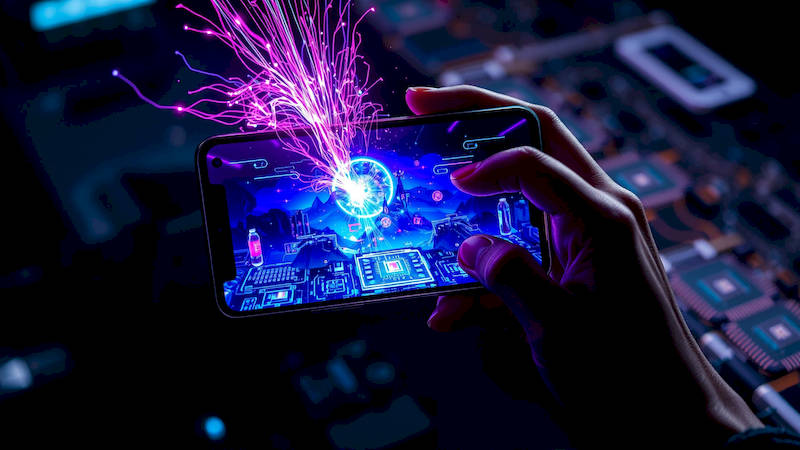
The smartphone has rapidly evolved from a communication device into a powerful, portable entertainment hub. While mobile gaming has seen explosive growth, it's often limited by the processing power of the device itself, particularly when it comes to graphically demanding AAA titles. This is where cloud gaming enters the picture, offering a solution that bypasses hardware limitations by streaming games directly to your smartphone. Cloud gaming allows users to play high-fidelity games on devices that wouldn’t normally be capable of running them, transforming your phone into a gateway to console and PC quality gaming experiences. This article will serve as a comprehensive guide to setting up and optimizing cloud gaming services on your smartphone, offering a practical walkthrough for both newcomers and experienced gamers alike.
The rise of 5G and increasingly robust Wi-Fi infrastructure has been pivotal in fueling the cloud gaming revolution. Services like Xbox Cloud Gaming, NVIDIA GeForce NOW, and Google Stadia (though Stadia has ceased operations, its influence paved the way for others) promise a seamless gaming experience, regardless of your smartphone’s specifications. However, understanding the nuances of each platform and optimizing your setup is crucial for achieving optimal performance. This goes beyond simply downloading an app; it involves considering your internet connection, compatible controllers, and the specific requirements of each cloud gaming service.
This guide will comprehensively explore the process, covering everything from service selection and initial setup to troubleshooting common issues and enhancing your overall cloud gaming experience. We’ll delve into practical details, offering step-by-step instructions and insights that will empower you to unlock a new dimension of mobile gaming. Furthermore, we’ll address considerations surrounding data usage, latency, and the evolving landscape of cloud gaming technologies.
- Choosing the Right Cloud Gaming Service for Your Needs
- Setting Up Your Smartphone for Optimal Performance
- Connecting Controllers and Accessories
- Navigating the Cloud Gaming App and Launching Games
- Troubleshooting Common Connectivity and Performance Issues
- Optimizing Your Data Usage and Battery Life
- The Future of Cloud Gaming on Smartphones
Choosing the Right Cloud Gaming Service for Your Needs
Selecting the right cloud gaming service is the first, and arguably most important, step. Currently, the leading contenders are Xbox Cloud Gaming (included with Xbox Game Pass Ultimate), NVIDIA GeForce NOW, and Amazon Luna. Each service operates on a slightly different model, catering to different gaming preferences and budgets. Xbox Cloud Gaming boasts a library of hundreds of games available to play instantly with an Xbox Game Pass Ultimate subscription, focusing heavily on first-party Microsoft titles. NVIDIA GeForce NOW, on the other hand, allows you to stream games you already own on platforms like Steam, Epic Games Store, and Ubisoft Connect. Amazon Luna offers a channel-based subscription model, letting you subscribe to specific game catalogs.
The deciding factors often come down to your existing game library and preferred gaming ecosystem. If you’re an avid Xbox gamer, Xbox Cloud Gaming presents the most obvious choice, providing access to a vast selection of titles you may already be familiar with. GeForce NOW is ideal for PC gamers who want to access their existing library on the go without investing in a high-end smartphone. Luna currently offers a narrower selection but is expanding, appealing particularly to those seeking diverse channel offerings. Consider carefully which service aligns best with your gaming habits and subscription preferences before committing.
Understanding the subscription costs and available tiers for each service is also vital. Xbox Cloud Gaming requires an Xbox Game Pass Ultimate subscription (around $17/month), while GeForce NOW offers both a free tier with limited session lengths and a priority tier with faster access and longer sessions (around $10/month). Luna’s pricing varies depending on the channels subscribed to. Remember to factor in these ongoing costs when evaluating the overall value proposition of each service.
Setting Up Your Smartphone for Optimal Performance
Once you’ve chosen a service, preparing your smartphone for optimal performance is essential. This involves several key steps, starting with ensuring a strong and stable internet connection. Wi-Fi 6 is highly recommended – it offers significantly improved speed and stability compared to older Wi-Fi standards. However, a robust 5G connection can also provide a viable alternative, particularly when on the move. Before launching any cloud gaming app, run a speed test to verify your download and upload speeds, as well as your ping. Most cloud gaming services recommend a minimum download speed of 15-25 Mbps and a ping of less than 40ms for a smooth experience.
Next, close any unnecessary background apps to free up valuable system resources. Smartphone operating systems often manage memory aggressively, but proactively closing unused applications can help prevent performance hiccups. Consider enabling "Game Mode" or a similar optimization feature if your smartphone manufacturer provides one. These modes typically prioritize gaming performance by limiting background processes and allocating more resources to the game. Finally, ensure your smartphone's operating system and apps are up to date – manufacturers often release updates that improve performance and stability.
Connecting Controllers and Accessories
While many cloud gaming services support touch controls, the experience is significantly enhanced by using a compatible Bluetooth controller. Xbox Wireless Controllers are universally supported by Xbox Cloud Gaming and generally work well with other services. PlayStation DualSense controllers are also compatible with many services, though you may need to use a third-party app or configuration tool to map the buttons correctly. NVIDIA GeForce NOW officially supports a wider range of controllers, including those from 8BitDo and Razer.
Before connecting a controller, ensure it’s sufficiently charged. Using a wired connection, if possible, can often provide a more stable and responsive connection. To pair a Bluetooth controller with your smartphone, put the controller into pairing mode (refer to the controller's manual for specific instructions) and then navigate to the Bluetooth settings on your smartphone. Scan for available devices and select your controller from the list. Once paired, the controller should automatically connect whenever you launch a cloud gaming app. Some services also support keyboard and mouse input, offering an alternative control scheme for certain games.
Navigating the Cloud Gaming App and Launching Games
The user interface and navigation within each cloud gaming app varies, but the general process of launching a game is fairly consistent. Once you’ve downloaded and installed the app, sign in with your account credentials. Browse the game library and select the game you want to play. In the case of Xbox Cloud Gaming, you’ll usually be presented with a launch button directly on the game tile. GeForce NOW requires you to launch the game through the service after first authenticating your game store account (e.g., Steam).
Pay attention to any on-screen prompts or tutorials that guide you through the initial setup process. These tutorials often provide information about button mapping, connection quality, and other important settings. Prior to starting a game, most services allow you to adjust the streaming quality settings. Lowering the streaming quality can reduce data usage and improve performance on slower connections, while increasing the quality can provide a sharper, more detailed image. Experiment with different settings to find the optimal balance between visual fidelity and performance.
Troubleshooting Common Connectivity and Performance Issues
Despite the advancements in cloud gaming technology, connectivity and performance issues can still occur. One of the most common problems is latency – the delay between your input and the game's response. High latency can result in a frustrating and unplayable experience. Several factors can contribute to latency, including your internet connection, the distance to the cloud gaming server, and network congestion. If you’re experiencing high latency, try switching to a different Wi-Fi network or moving closer to your Wi-Fi router. Closing unnecessary apps and ensuring your smartphone is running the latest software can also help.
Another common issue is stuttering or buffering. This can be caused by a slow or unstable internet connection. As previously stated, running a speed test is vital. If your connection consistently falls below the recommended speeds, consider upgrading your internet plan or switching to a more reliable provider. When using a Wi-Fi connection, try switching to the 5 GHz band, which typically offers faster speeds and less interference than the 2.4 GHz band. Finally, remember to restart your smartphone and the cloud gaming app if you continue to experience problems.
Optimizing Your Data Usage and Battery Life
Cloud gaming can be data-intensive, especially at higher streaming quality settings. To minimize data usage, adjust the streaming quality settings within the app to a lower resolution. Many services offer the option to limit data usage to a specific amount per month. Also, ensure you’re connected to a Wi-Fi network whenever possible to avoid using your mobile data allowance.
Cloud gaming also tends to be battery-intensive. To prolong your smartphone’s battery life, lower the screen brightness, close unnecessary background apps, and enable battery saver mode. Consider using a power bank or charging your smartphone while playing. Additionally, some smartphones have specialized gaming modes that optimize power consumption.
The Future of Cloud Gaming on Smartphones
The future of cloud gaming on smartphones looks exceedingly bright. As 5G networks become more widespread and cloud gaming technology matures, we can expect even more seamless and immersive gaming experiences. Advancements in video compression algorithms will further reduce latency and improve image quality. Companies are continually developing new features and optimizations designed to enhance the mobile cloud gaming experience. Increased competition among cloud gaming providers will ultimately benefit consumers, leading to lower prices and a wider selection of games. The integration of augmented reality (AR) and virtual reality (VR) technologies with cloud gaming is also an exciting prospect, potentially blurring the lines between the physical and digital worlds.
In summary, setting up cloud gaming on your smartphone unlocks a world of gaming possibilities previously unavailable on mobile devices. Careful selection of a service tailored to your needs, optimizing your smartphone's performance, understanding controller compatibility, and troubleshooting common issues are critical steps. By following the guidance provided in this article, you can transform your smartphone into a powerful portable gaming machine, capable of delivering console and PC-quality experiences on the go. Remember to experiment with different settings, monitor your data usage, and stay informed about the latest advancements in cloud gaming technology to maximize your enjoyment. The future of gaming is in the cloud, and it's readily accessible in the palm of your hand.
Deja una respuesta