
How to Set Up Dual Camera Angles for YouTube Tutorials
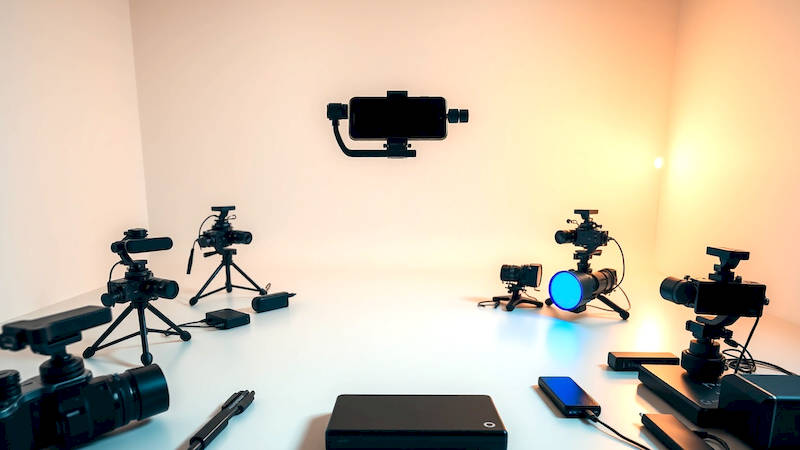
The world of online learning and "how-to" content is booming, and YouTube remains the dominant platform. But simply having knowledge to share isn’t enough anymore. Viewers expect a polished, engaging experience, and one of the most significant levers you can pull to achieve this is the strategic use of multiple camera angles. Moving beyond a single, static shot instantly elevates your tutorials, making them more dynamic, easier to follow, and ultimately, more valuable to your audience. This article will delve deep into the art and science of setting up dual camera angles for your YouTube tutorials, covering everything from essential equipment to advanced techniques.
Traditionally, tutorials relied heavily on screen recordings or a single camera focused on the presenter. While these approaches can be effective, they often lack the visual depth to truly engage viewers. A dual-camera setup allows you to showcase both what you’re doing (screen recording, close-up of hands) and who is doing it (presenter’s face, reaction shots). According to a recent study by Vidyard, videos with a presenter have a 41% higher view duration than those without. This demonstrates the crucial role of the human element and the benefit of showing, not just telling.
This guide aims to equip you with the knowledge to transition your YouTube tutorial game, regardless of your current experience level. We’ll explore the hardware you’ll need, the optimal camera angles, how to manage audio across multiple sources, and tips for editing your footage to create a seamless and professional final product. Let's get started.
- Understanding the Power of Multiple Angles: Beyond the Single Shot
- Essential Equipment: What You'll Need to Get Started
- Optimal Camera Angles: Planning Your Shots for Clarity
- Software and Recording: Bringing it All Together
- Editing for Smooth Transitions and Engagement
- Advanced Techniques: Adding Polish and Creativity
- Conclusion: Elevate Your Tutorials and Engage Your Audience
Understanding the Power of Multiple Angles: Beyond the Single Shot
The core principle behind using multiple camera angles isn’t just about aesthetic variety; it’s about improving comprehension. Think about how professional cooking shows or repair videos are filmed. They rarely stay fixated on a single perspective. They frequently switch between a wide shot of the entire workspace, a close-up of the chef’s hands demonstrating a technique, and a shot of the chef explaining the reasoning behind their actions. This constant visual shift keeps viewers engaged and clarifies complex processes.
Employing dual angles effectively means considering what each camera will focus on and how the transitions between them will contribute to the learning experience. A common and effective setup might include a primary camera focused on you, the instructor, and a secondary camera capturing a detailed overhead view of your hands working on a project. This allows your audience to simultaneously see your explanations and the practical application of those explanations. It's about creating a multi-sensory experience that caters to different learning styles.
Furthermore, consider why you are switching angles. A quick cut from your face to a demonstration of a crucial step emphasizes its importance. A prolonged shot of your hands meticulously performing a task allows viewers to replicate the action accurately. Planned, purposeful angle changes make your tutorial more impactful and digestible, significantly improving information retention. Think of it as visual pacing, guiding your viewers through the content with deliberate camera work.
Essential Equipment: What You'll Need to Get Started
You don't necessarily need to break the bank to achieve a professional dual-camera setup. However, understanding the key components is vital. At a minimum, you’ll require two cameras. Webcams are a good starting point for face-focused shots, but dedicated cameras (DSLRs, mirrorless cameras, or high-quality action cameras) will provide significantly better image quality and control. Secondly, consistent audio capture is essential. A dedicated USB microphone is preferable to relying on built-in camera microphones, which often produce tinny and echoey sound.
Beyond cameras and microphones, you'll need tripods for stabilization. Wobbling footage is instantly distracting and unprofessional. Consider adjustable tripods that allow you to easily frame your shots and lock them into position. A capture card may be necessary if you’re using a DSLR or mirrorless camera as your second camera, to transmit the video signal to your computer. Finally, don’t underestimate the importance of lighting. Good lighting makes a world of difference in video quality, especially when using multiple cameras. Investing in a simple softbox or ring light can dramatically improve the look of your footage.
For a budget-conscious setup, consider utilizing your smartphone as a second camera. Many modern smartphones boast impressive camera capabilities. Apps like OBS Studio (discussed later) can often seamlessly integrate smartphone cameras into your recording setup. This reduces the upfront investment while still providing a meaningful improvement over a single-camera approach.
Optimal Camera Angles: Planning Your Shots for Clarity
Selecting the right camera angles is perhaps the most crucial aspect of a dual-camera setup. A frequent and effective configuration is a "face-and-hands" setup, as previously mentioned. The primary camera, positioned slightly off-center, should capture your face and upper body, allowing you to maintain eye contact with the audience and deliver your explanations naturally. The secondary camera, overhead or slightly angled down, should focus on your work area, providing a clear view of your hands and the task at hand.
Another powerful technique is to use a “wide-and-tight” combination. The wide shot establishes the overall context, showcasing your entire workspace or the subject matter you're discussing. The tight shot zooms in on specific details, highlighting crucial elements or intricate processes. This approach is particularly useful for product reviews or demonstrations where showcasing intricate features is essential. Experiment with different angles and compositions. Don't be afraid to try unconventional perspectives to find what works best for your content and your style.
A useful rule of thumb is to follow the "180-degree rule" in filmmaking – imagine a line connecting your two subjects (yourself and the subject matter). Keep both cameras on the same side of this imaginary line to maintain consistent spatial relationships and avoid confusing the viewer. Breaking this rule can lead to disorienting cuts and a less professional feel.
Software and Recording: Bringing it All Together
Once you have your hardware dialed in, you’ll need software to manage your recording. OBS Studio (Open Broadcaster Software) is a free, open-source option that’s incredibly powerful and versatile. It allows you to capture footage from multiple cameras, microphones, and screen recordings simultaneously. You can then arrange these sources within scenes, creating a custom layout for your tutorial. Streamlabs Desktop is another popular option, offering similar functionality with a more user-friendly interface, but it’s more resource-intensive.
Configuring OBS Studio or Streamlabs Desktop is relatively straightforward. You'll need to add each camera as a "Video Capture Device" source and select the corresponding input. Ensure audio monitoring is enabled for each microphone to verify levels and quality. Remember to perform test recordings to adjust settings and identify potential issues before committing to a full tutorial. "Ndi" (Network Device Interface) is becoming increasingly popular as it allows you to transmit high-quality video over a network, simplifying setup and offering greater flexibility.
Don't neglect audio mixing. Ensure your voice is clear and prominent, while the secondary camera’s audio (if any) is either muted or subtly blended in. Consistent audio levels are critical for a professional sound. Use a limiter plugin within OBS or your editing software to prevent audio from peaking and distorting.
Editing for Smooth Transitions and Engagement
The raw footage from your dual-camera setup is just the starting point. Editing is where you truly polish your tutorial and create a professional final product. Software like Adobe Premiere Pro, DaVinci Resolve (free version available), or Final Cut Pro provide the tools you need to refine your footage. Focus on seamless transitions between camera angles. Simple cuts are often the most effective, but subtle crossfades can add a touch of sophistication.
Pay close attention to timing. Align cuts with your narration, ensuring a smooth flow between your explanations and demonstrations. Don't be afraid to use jump cuts to remove pauses or extraneous movements, creating a more dynamic and concise presentation. Adding lower thirds (text overlays) with your name or the topic being discussed can enhance professionalism. Consider using B-roll footage – supplementary shots that add visual interest and break up the monotony of a single perspective.
Crucially, pay attention to colour correction and audio mixing during editing. Ensuring consistent colour tones and balanced audio levels will significantly improve the overall viewing experience. Often, small tweaks in post-production can make a significant difference in the perceived quality of your video.
Advanced Techniques: Adding Polish and Creativity
Once you've mastered the basics, consider experimenting with more advanced techniques. Using picture-in-picture (PIP) allows you to display both camera angles simultaneously, which can be useful for highlighting specific details. Adding graphics or animations can further enhance engagement and clarify complex concepts. Consider utilizing chroma key (green screen) to remove backgrounds and create more dynamic compositions.
Live streaming with dual cameras is another option. Platforms like YouTube Live and Twitch allow you to broadcast your tutorials in real time, interacting with your audience directly. This requires a stable internet connection and a robust streaming setup, but it can be a powerful way to build a community and gather feedback. Also, explore utilizing different lens options with your cameras – a wider lens can capture more of the scene, while a tighter lens can isolate specific details.
Conclusion: Elevate Your Tutorials and Engage Your Audience
Setting up dual camera angles for your YouTube tutorials is a game changer. It’s an investment in the quality of your content, and ultimately, in the engagement of your audience. While it requires initial effort to acquire the necessary equipment and learn the technical aspects, the returns are significant. By thoughtfully planning your camera angles, utilizing appropriate software, and mastering the art of editing, you can create tutorials that are more informative, engaging, and professional.
Remember the core principles: clarity, comprehension, and engagement. Strive to show, not just tell. Experiment with different techniques and find what works best for your style and content. Don’t be afraid to iterate and refine your process based on viewer feedback. Start with the essentials – two cameras, good audio, and stable tripods. Gradually add more advanced equipment and techniques as your skills and budget allow. The most important takeaway is to prioritize creating valuable, high-quality content that resonates with your audience. Your viewers will thank you for it.
Deja una respuesta